
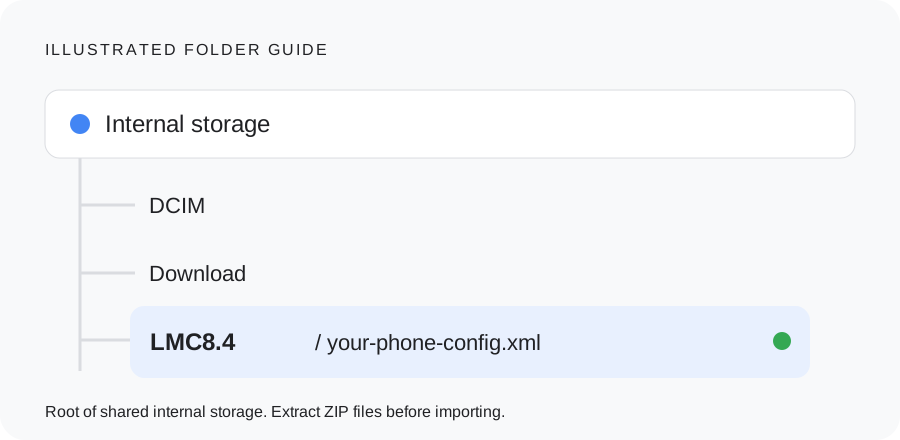
Put the extracted XML directly in Internal storage / LMC8.4 /. Open LMC, double-tap the dark area near the shutter, choose the filename, and tap Import or Restore. This is the folder specified by the LMC 8.4 R15 and R16+ config indexes.
Choose a file that matches the build
Use the XML catalog to match the phone and installed release. Read the contributor instructions for package or library requirements before downloading the preset from its original source.
R15 has a separate index. Its files may work on later builds, but the newer index says to test them. R18 accepts earlier configs according to its release notes; you still need to check device-specific settings. An XML for another camera port or a different phone can load without producing a working camera setup.
Load a config
- Save your current configuration using the save or XML option in LMC settings. Give the backup a name containing your phone and release.
- Download a matching XML from the cited contributor or archive. Extract a ZIP first; renaming a ZIP to .xml does not extract its contents.
- Create LMC8.4 at the root of shared internal storage, beside DCIM and Download. Put the actual .xml file directly inside it.
- Open the camera and double-tap the dark area near the shutter. The exact touch area and labels can differ between builds.
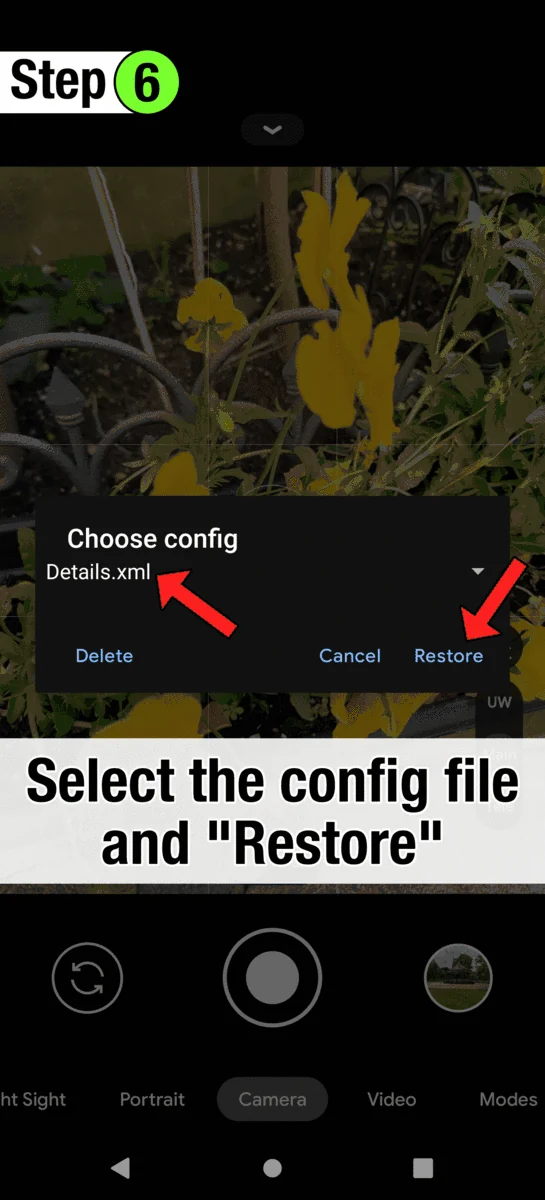
- Choose the filename and tap Import or Restore. Follow any build-specific instruction to restore again or reopen the app.
- Check a saved main-camera photo, selfie, each auxiliary lens and video. Write down the loaded filename because the chooser may list available files without marking the active one.
Android storage permissions
If the file is in the right folder but LMC cannot see it, check storage access for that installed APK. Android 11 tightened scoped-storage rules; behavior also depends on the app target version and firmware. A photos-only permission does not automatically give access to an XML document.
Some GCam ports expose an All files access option under Android Special app access. This option requires support in the app manifest and may be absent for your build. Review it only when you trust the APK and need shared-folder access. Avoid granting permissions to unrelated apps to fix the chooser.
Saving a temporary config from LMC is a useful check: find the file it creates, then use that directory. The folder guide explains how to spot a nested folder or a doubled extension.
Back up, restore and compare settings
Look for Save Settings, Configs or an XML action in the app settings. Menu locations vary. Export with a short name and keep an untouched copy outside the app directory. Restore it through the same chooser when you want to undo a change.
Compare two presets using the same scene, light, lens and capture mode. Open the saved photos, then inspect focus, skin tones, highlights and shadows. A different exposure or moving subject can change the result even when the preset stays the same.
DSLR, iPhone color and Leica are community style labels. They describe a requested look and do not change the sensor or optics. This website has no published controlled captures demonstrating a match to those camera systems.
If no files appear
Check the folder location, extraction and the full filename. Common mistakes include preset.xml.txt, an unextracted ZIP, and LMC8.4/LMC8.4/file.xml. Move the actual XML into the outer LMC8.4 folder.
If a config saved by the app appears but the downloaded one does not, compare their folders and extensions. If the chooser sees the file but the camera fails after import, check its release, device and library requirements. Return to your backup before trying another preset; use the config-related crash checks to narrow the cause.
What an XML import looks like
These frames from the generic GCam tutorial show the double-tap and restore sequence. For the indexed LMC 8.4 builds, use /LMC8.4/ even if a generic example shows another folder.
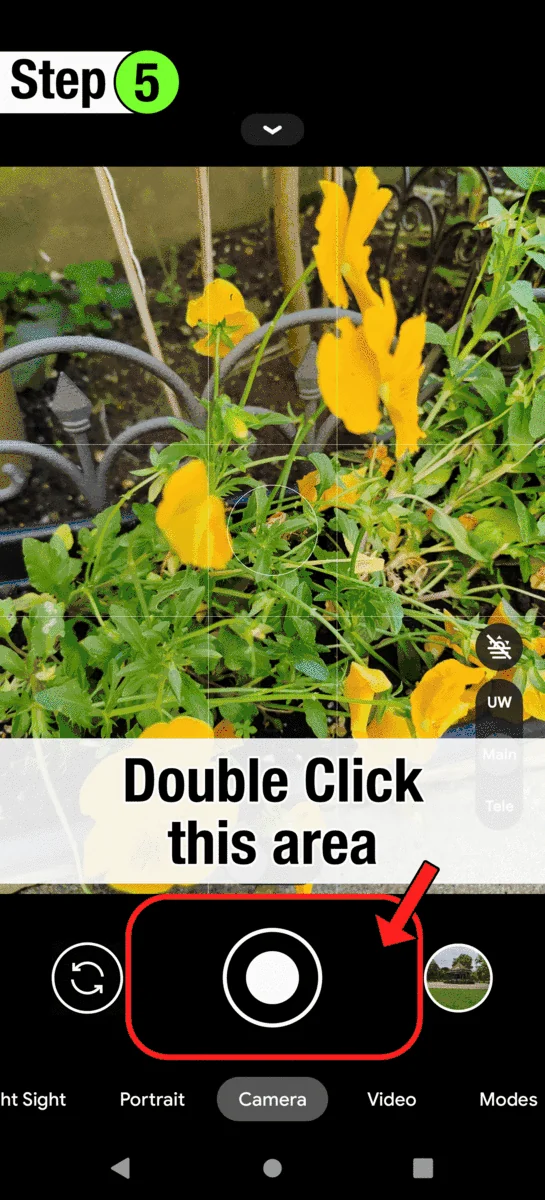
Before this screen
Put the extracted XML in /LMC8.4/ for the indexed R15 and R16+ builds. A ZIP is not an XML. Check access to shared storage if the list is empty.
After this screen
Record the filename, reopen the app if the profile requires it, and verify saved photos and each lens. If a crash began only after the import, return to your backup before testing another file.
Check the LMC folder →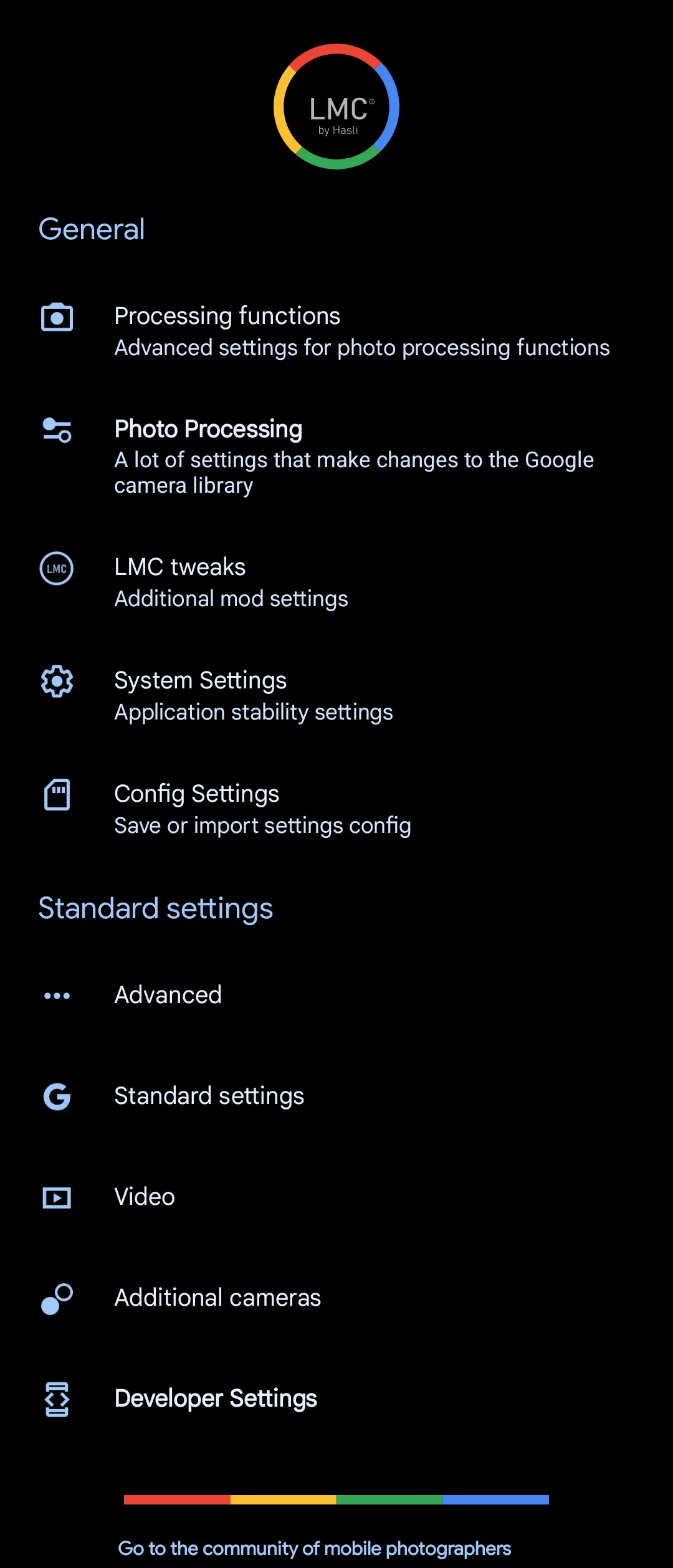
Check the result before continuing
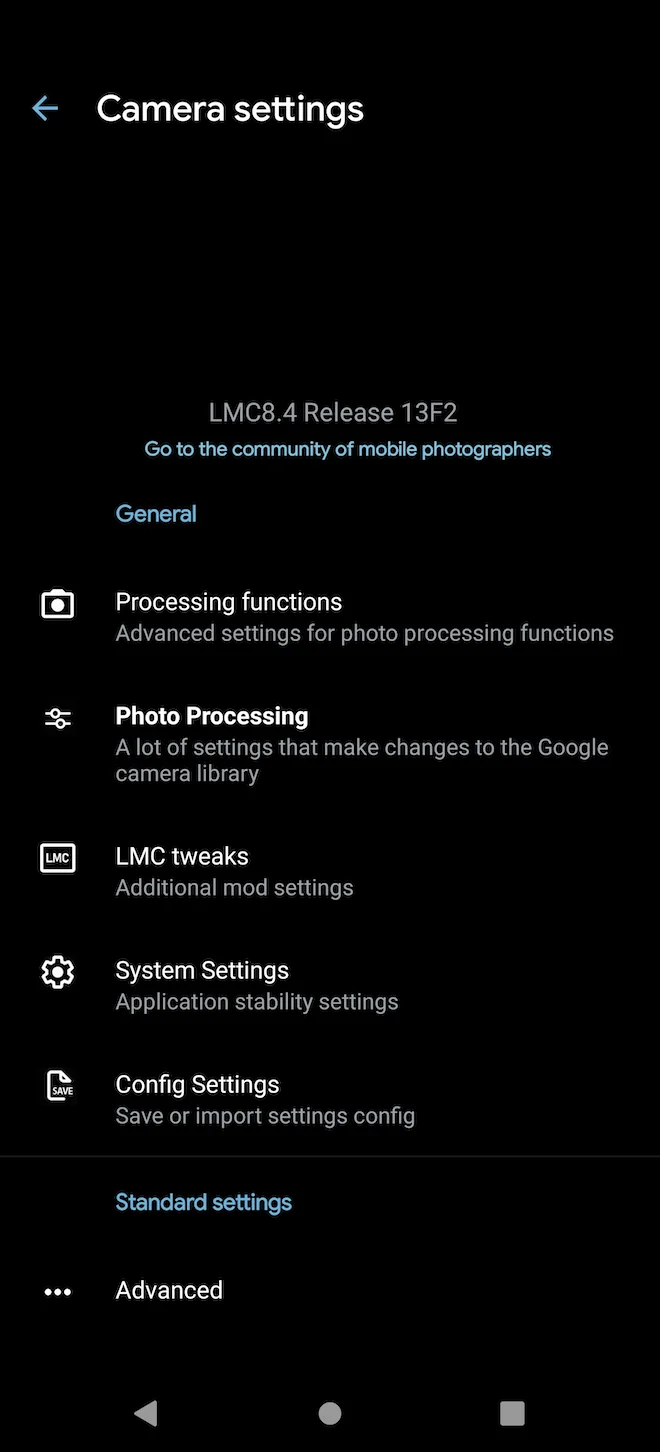
Export a backup you can recognize
Look for Config Settings, Save settings or the equivalent action in your installed build. Save a short filename that identifies the phone and release, such as my-phone-r18-working.xml. Use a name that you can recognize later.
Find the exported XML in your file manager and keep a separate copy. Saving from the app also helps you discover its actual config directory. If you cannot find the expected menu, consult the notes for the exact build rather than following a screenshot from another release blindly.
Confirm what changed after restore
A preset can alter camera IDs, color, noise or processing controls. Test the same lens/mode before and after it. The chooser may list available files without identifying the active one, so write down the filename you loaded.
Keep your working setup recorded
Save these details with your backup so you can restore the setup or report a failure.
________________________
________________________
________________________
________________________
________________________
________________________
Copy these fields into your notes or download the blank device-test worksheet. Nothing in this checklist is submitted to the site.