
Start with a working main camera, then adjust the setting that affects the photo you want to take.
The short answer
The best LMC 8.4 settings depend on your phone and subject. Begin with defaults or a model-matched XML, save a backup, and compare one change at a time. A universal sharpness, noise or HDR value cannot account for different sensors and firmware.
Start with a photo you can repeat
Before adjusting the patcher, photograph a familiar scene with the main rear camera. Include a bright area, a darker surface and something with fine texture. Save the image and open it from the gallery. If capture or saving fails, fix that through the LMC crash checks before changing image processing.
Keep the same lens, framing and lighting for your next capture. A window moving into shadow or a switch from the main camera to digital zoom can hide the effect of a setting. Export the current XML and give it a name you can recognize, such as your model followed by the date. That filename is an example naming convention, not a preset supplied by this website.
Choose a capture mode for the subject
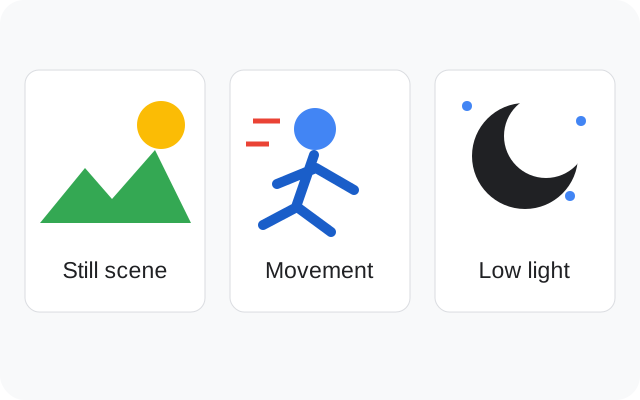
A still landscape gives you time to compare processing. A child or pet moving indoors needs a shorter, reliable capture workflow. Try the ordinary photo mode first for movement. If a more involved HDR mode leaves doubled edges or loses the moment, return to the mode that saves the usable frame.
HDR-related controls vary between builds and XML profiles. Check the saved photo rather than relying on a brighter preview. Watch bright windows and dark clothing together: preserving a highlight is useful only if the rest of the image still suits your purpose. For darker scenes, use the night-photography checklist.
Compare white balance before chasing saturation
If skin looks orange or indoor walls look green, compare the available AWB choice with a neutral object in the scene. Keep exposure and framing steady. A setting that looks pleasing outdoors can make indoor light look worse, so save separate examples before settling on it.
Increasing saturation can make an already incorrect color cast more obvious. Avoid changing AWB, saturation and a downloaded color preset together. When the source requires a particular AWB or noise model, follow its instructions. R18 may need an app restart after selecting a custom model; its release notes explain that behavior.
Judge detail at normal viewing size
Sharpening can make an edge look crisp while adding a pale outline around it. Look at lettering, hair and tree branches, then inspect skin and flat walls for noise or smeared texture. Compare both the full image and a crop. A setting chosen from a tiny crop may look harsh in the photo you actually share.
Leave advanced controls alone when their effect is unclear. Some values interact: R17's gain controls, for example, include an activation condition described in its developer notes. Copying isolated numbers from another phone is a poor substitute for a matched profile. The XML catalog keeps model and release information beside each reference.
Keep the setup that works for your photos
After a promising change, test a face, a daylight scene and the lighting you often use at home. Check whether capture and saving remain dependable. Test video separately; a photo preset does not establish video support.
Save the APK filename, package, XML and Android version with the result. If the change helps only one situation, keep both profiles and name them by use. You can restore your backup through the XML import process. This workflow helps you choose settings on your own phone; it does not supply measured settings for every model.
If you plan to edit the original file, read when to use RAW or JPEG in LMC 8.4 before enabling extra output formats.