
Choose an XML for your hardware first, then compare its color and detail choices in the scenes you take.
The short answer
For LMC 8.4, a DSLR, iPhone-color or Leica XML is a community settings profile. Choose one that names your phone and LMC release before judging its style. The label does not change your camera hardware or establish an official match to a branded camera.
Check what the source actually promises
A filename can describe a contributor's intended look, a borrowed name or a specific processing choice. Read the accompanying instructions. The community XML index includes references that explain contrast or color behavior; others provide only a filename. Those are different amounts of information.
The config catalog keeps the source and any known contributor beside the file. A missing author credit means the index does not name one; it does not make Muzamil the XML's creator. Contact the original contributor or use an instruction link when the settings require a separate library.
Match phone and release before style
Find the complete model name, including 4G or 5G, Pro, Plus or Lite. For phones with different regional chipsets, check the variant the source names. An attractive color profile for an S23 Ultra is not a device recommendation for an S24 Exynos.
Next, compare the release assignment. R15 has a separate index from R16 and later. A file in the broad R16+ category may not name R18 explicitly. R18 accepts previous configurations according to its release notes, but the profile still needs a usable phone, lens and library combination. Read the R17 to R18 comparison before moving a working setup.
What to compare for each label
| Style label | Useful things to inspect |
|---|---|
| DSLR | Texture, sharpening outlines and portrait boundaries. Software cannot create a larger physical sensor. |
| iPhone color | Skin tones and neutral surfaces in both daylight and indoor light. The filename does not establish a measured color match. |
| Leica | Contrast, retained shadow detail and the appearance of reds and greens. The name does not establish Leica optics or endorsement. |
A profile can change more than its color. Check whether it also affects lens IDs, processing, upscaling or video settings before using it as your everyday setup.
Make a comparison you can trust
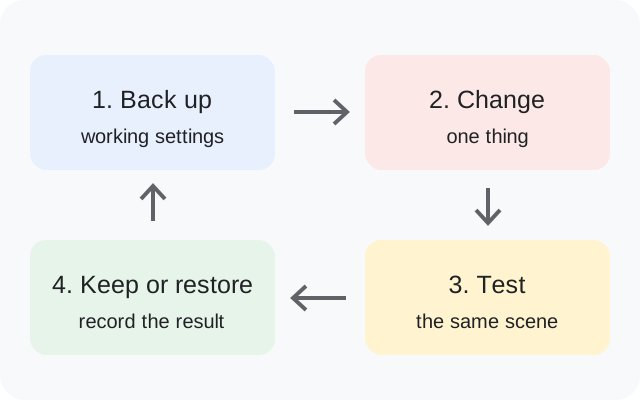
- Export the current working XML and keep a separate copy.
- Use the same phone, main lens, framing and capture mode for each profile.
- Choose a scene that stays stable while you switch settings.
- Compare a face or neutral object as well as a colorful scene.
- Open the original saved images at the same size and note any capture or saving problem.
- Restore the old XML if the new one removes a lens or makes the app unreliable.
Keep the filenames with the comparison. A renamed copy makes it harder to trace the settings back to the right source. The XML import guide explains the restore process.
When a filter returns no matching file
A style search is only useful when the remaining file still matches your model and release. If it returns no suitable profile, start with a documented device XML or defaults and make a controlled adjustment. Avoid transferring another phone's camera IDs just to get its color label.
Try the DSLR-label filter, iPhone-style filter or Leica-label filter, then read the actual source notes. No branded-camera matching experiment is published here. These labels help locate contributor preferences; your own saved photos determine whether you keep them.